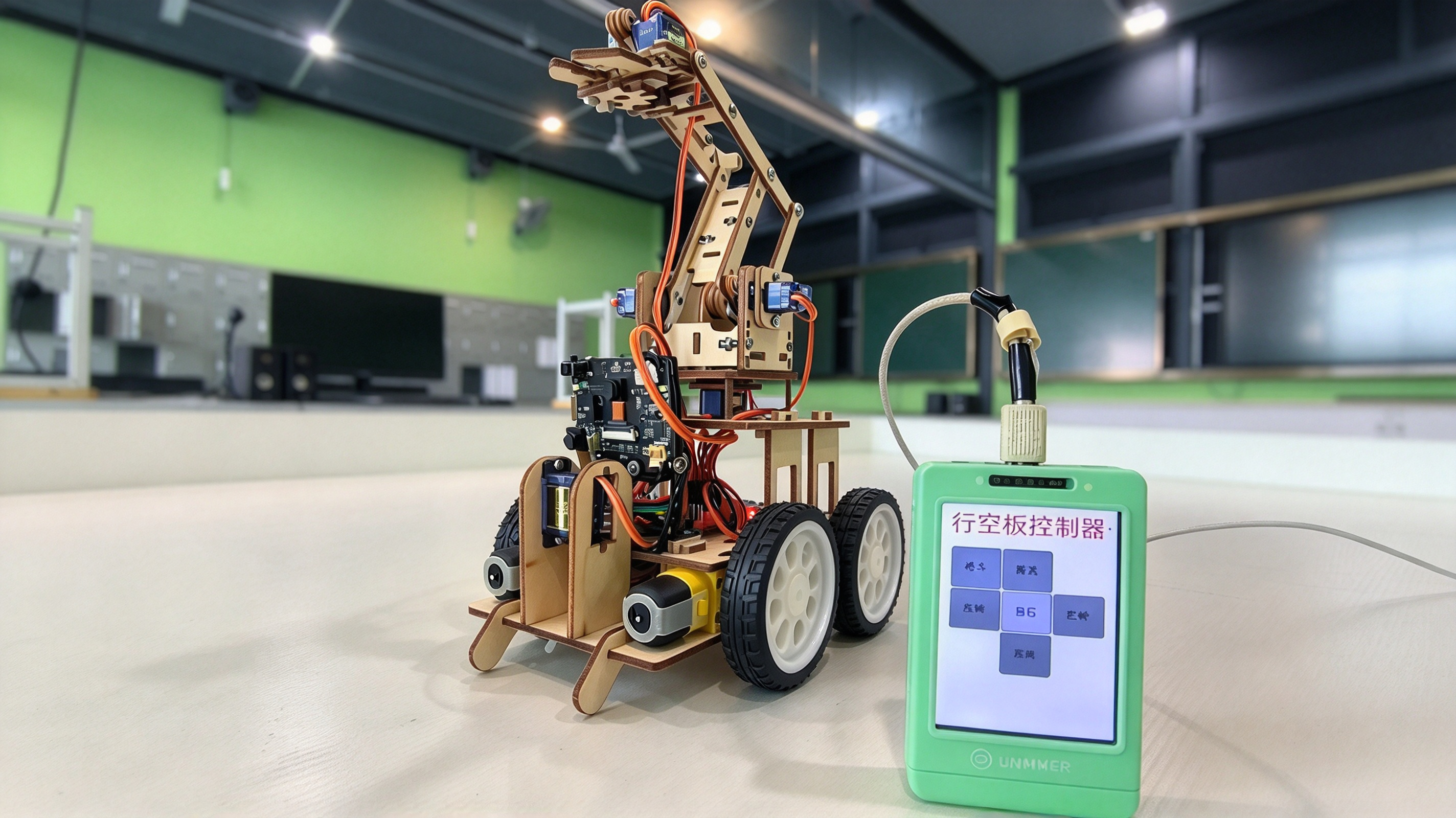
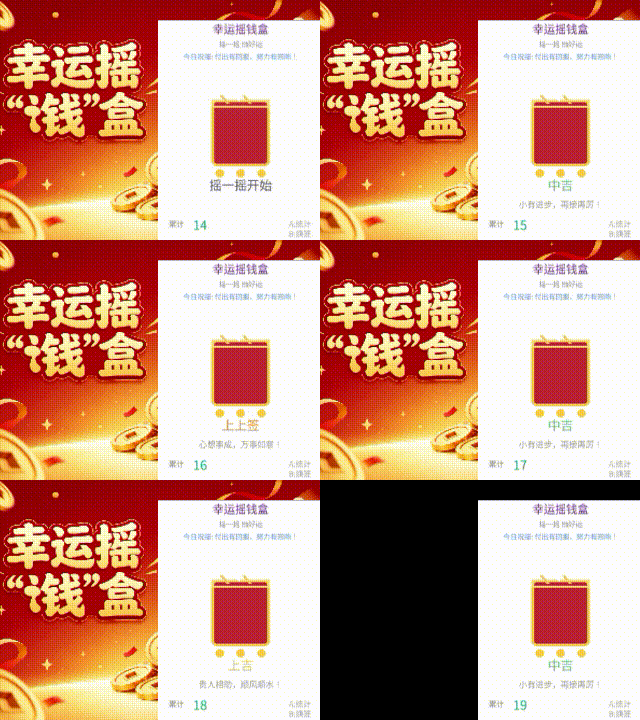
先看看效果!
直接上代码
不清楚的留言交流
- import time
- from unihiker import GUI # 导入包
-
- gui = GUI() # 实例化GUI类
-
- img_image2 = gui.draw_image(x=0, y=0, image='4.png')
-
-
- def mouse_move(x, y):
- print("坐标:x={},y={}".format(x, y))
- if compare(x, 90, 170) and compare(y, 80, 110):
- img_image2.config(image="1.png")
- elif compare(x, 35, 70) and compare(y, 110, 185):
- img_image2.config(image="2.png")
- elif compare(x, 120, 230) and compare(y, 200, 240):
- img_image2.config(image="4.png")
- elif compare(x, 169, 210) and compare(y, 110, 185):
- img_image2.config(image="3.png")
-
-
- def compare(val, min, max):
- if val in range(min, max + 1):
- return True
- else:
- return False
-
-
- xx = 0
- yy = 0
-
- def press(x):
- global xx
- xx = [x.x, x.y]
- # print(xx)
-
-
- def release(y):
- yy = [y.x, y.y]
- temp = yy[0] - xx[0]
- temp1 = yy[1] - xx[1]
- if temp > 30:
- # print("右滑")
- img_image2.config(image="3.png")
- if temp < -30:
- # print("左滑")
- img_image2.config(image="2.png")
- if temp1 > 30:
- # print("下滑")
- img_image2.config(image="4.png")
- if temp1 < -30:
- # print("上滑")
- img_image2.config(image="1.png")
-
-
- # print(temp1)
-
- # 通过点击方式切换按钮
- # gui.on_mouse_move(mouse_move)
-
- # 通过手势切换按钮
- gui.master.bind('<Button-1>', press) # 鼠标左键按下
- gui.master.bind("<ButtonRelease>", release) # 鼠标左键释放
-
- while True:
- # 增加等待,防止程序退出和卡住
- time.sleep(1)
-
-
-
|