
掌控板初见面
2020-05-171.5万
AI 快速预览详细
本文介绍了如何使用掌控板和扩展板制作一个多功能小闹钟。项目名称为“掌控小闹钟”,硬件清单包括掌控板、扩展板和其他必要组件。最终效果是显示当前时间、深圳当天的天气信息(如天气状况、最高气温和最低气温)。难度等级适中,适合STEM教育和少儿编程入门。
|
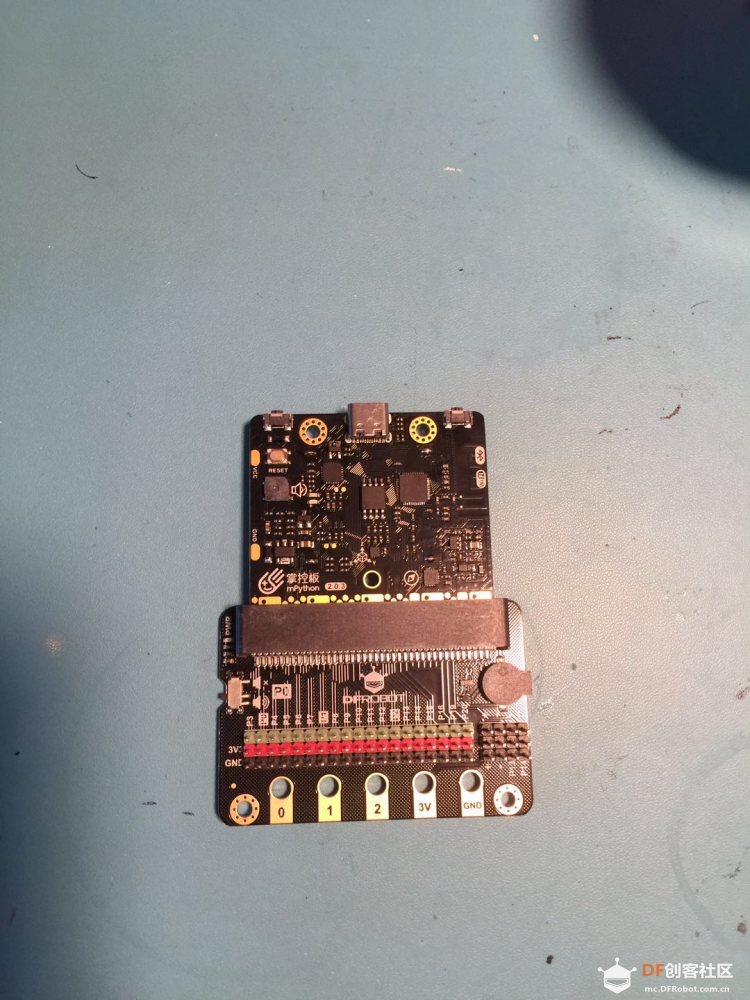
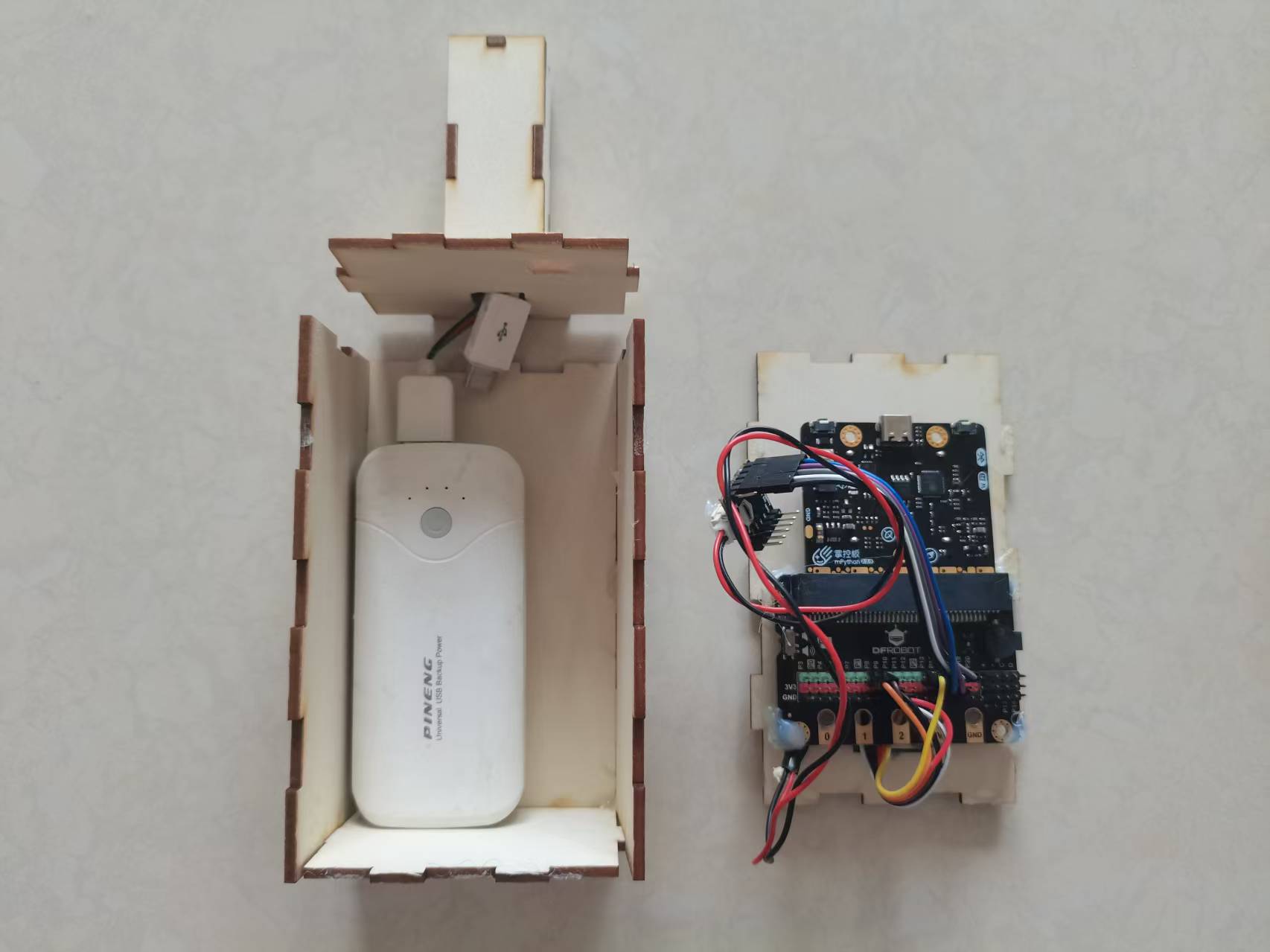
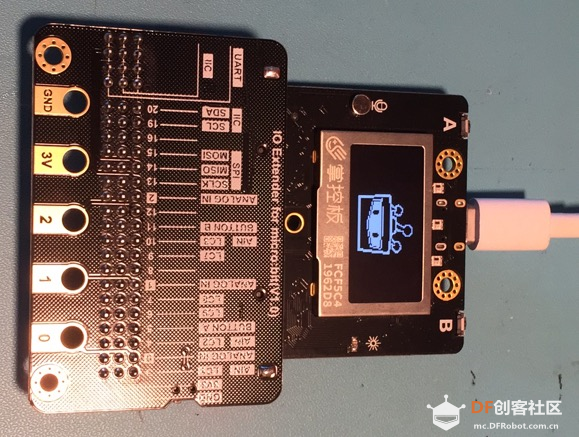
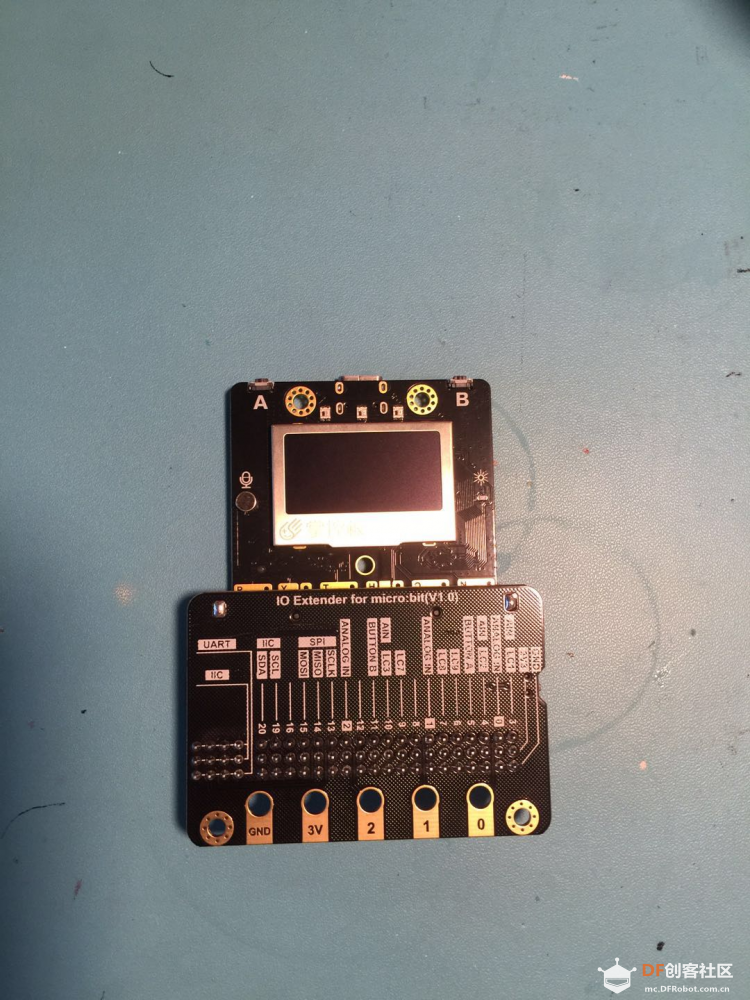
先来几张图片(感觉配上扩展板好丑) 给大家一个掌控小闹钟的程序;(用mind+(sb3我无法上传)) #include <MPython.h> #include <DFRobot_Iot.h> #include <MPython_NtpTime.h> #include <mPython_Weather.h> // 创建对象 DFRobot_Iot myIot; MPython_NtpTime ntptime; mPython_Weather myWeather; // 主程序开始 void setup() { mPython.begin(); myIot.wifiConnect("", ""); while (!myIot.wifiStatus()) {yield();} ntptime.setNtpTime(ntptime.UTCEast8_t, "ntp.ntsc.ac.cn"); myWeather.init("server.mindplus.top", "31982666", "E6MtBcxQ"); buzz.redirect(P0); } void loop() { if ((((((ntptime.localTime(ntptime.Year)==2020) && (ntptime.localTime(ntptime.Month)==5)) && (ntptime.localTime(ntptime.Hour)==7)) && (ntptime.localTime(ntptime.Minute)==15)) && (ntptime.localTime(ntptime.Second)==0))) { buzz.play(DADADADUM, Once); display.setCursorLine(1); display.printLine((String("深圳今天的天气") + String(myWeather.getWeather("weather", "101280601")))); display.setCursorLine(2); display.printLine((String("深圳今天的最高气温") + String(myWeather.getWeather("temperaturHigh", "101280601")))); display.setCursorLine(3); display.printLine((String("深圳今天的最低气温") + String(myWeather.getWeather("temperaturLow", "101280601")))); display.setCursorLine(4); display.printLine((String((String(ntptime.localTime(ntptime.Month)) + String("月"))) + String((String(ntptime.localTime(ntptime.Date)) + String("日"))))); } } |
-
202005174542..png (504.06 KB, 下载次数: 4659)

-
202005171088..png (997.4 KB, 下载次数: 4388)
-
202005177215..png (927.87 KB, 下载次数: 4547)